Generating visuals with artificial intelligence is straightforward, but maintaining a consistent look across multiple shots remains a major hurdle for filmmakers. According to Softonic's report, you can reduce unwanted changes in Adobe Firefly by using image, video, and audio references to guide the output. This approach acts as a visual guide, allowing you to show the software what you want rather than relying solely on descriptions.
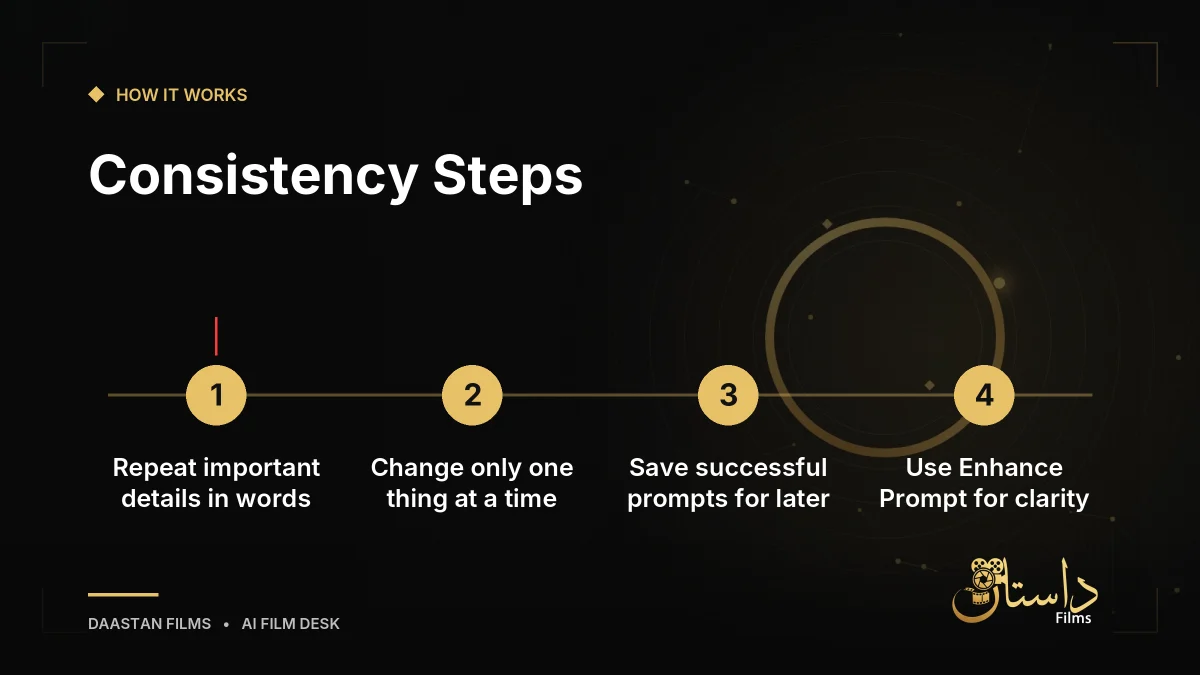
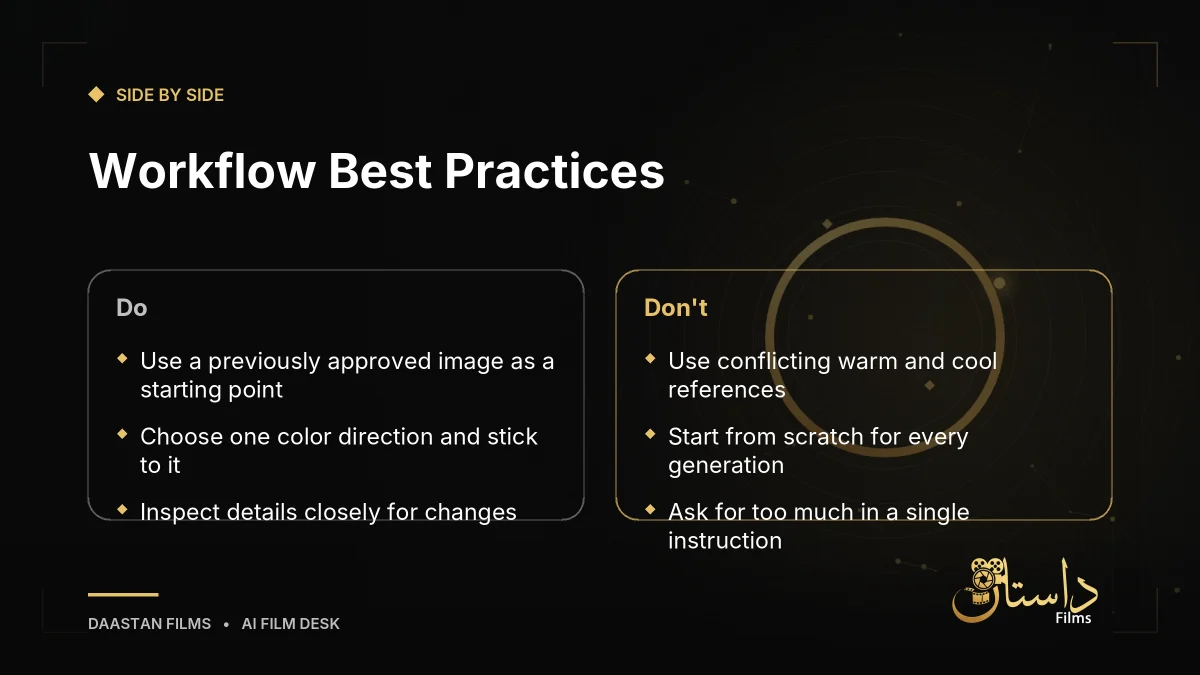
Before jumping in and spending credits aimlessly, having a clear plan prevents wasted resources. When setting up your workflow, always repeat the most important details using the same words and elements so they carry over into new scenes. Make gradual adjustments by changing only one thing at a time, since large modifications cause the software's results to drift more than necessary. Keep a document handy to save prompts that work, and use the Enhance Prompt feature during video generation to clear up your instructions.
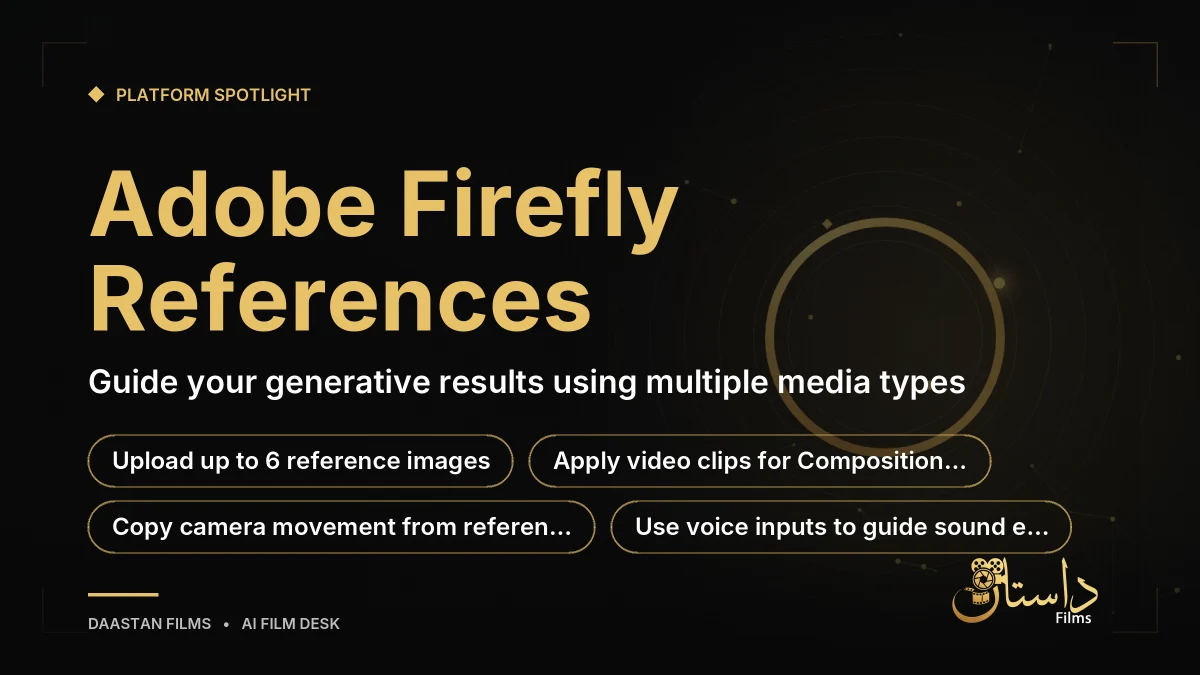
To start using images, find the large text box on Adobe Firefly's main page or navigate to the tools column on the left and select Image followed by Generate Image. Click the Reference button to upload up to six reference images from your own device, Adobe cloud storage, or Adobe Stock. For video generation using the Adobe Firefly Video model, you can utilize reference clips between 5 and 20 seconds long and under 200 megabytes in two distinct ways. The Composition option generates new visuals keeping the original structure, while the Camera option copies camera movements from your reference clip.
Audio inputs also play a role in guiding your generative results. You can use your voice as a reference for creating sound effects, utilizing your recording to guide the rhythm and energy of the generated effects. Additionally, the Generate music panel lets you upload videos so the system can suggest prompts matching your video file.
To push your workflow further, Softonic notes that you can refine clear references in Adobe Photoshop by cropping, expanding areas with Generative Expand, altering colors, or removing distractions. Once your scenes are ready, bring them into Adobe Premiere Pro to place clips on the timeline, add sound effects, and adjust shot durations to build a functional mock-up.
Always inspect details closely since artificial intelligence can change elements like a button, tattoo, or logo without warning. Keep in mind that Adobe Firefly is a tool for ideas and presentations, meaning human approval is still necessary for final results.
By following these structured planning steps, utilizing media references properly, and refining assets in companion applications like Photoshop and Premiere Pro, creators can dramatically improve consistency across concept scenes.
Frequently asked questions
You can attach up to 6 reference images to complement your text description before you start generating.
Reference clips must be between 5 and 20 seconds long and under 200 megabytes in size.
You can use your voice as a reference to guide the rhythm and energy of generated sound effects, or upload videos in the Generate music panel to get prompt suggestions.
Have a film, DVC or AI project in mind?
Daastan Films blends production, post-production and AI. Let’s talk about yours.