
Setting up a local AI environment often begins with a simple click on a download button, but for filmmakers working with high-resolution models and video workflows, this initial choice can lead to significant technical debt. According to a recent installation guide from note.com, many users who opt for the standard ComfyUI Desktop version find their system drives completely exhausted within a short period. This guide explores how to navigate the installation process to ensure your hardware remains stable and your storage remains manageable.
Choosing the Right Installation Path
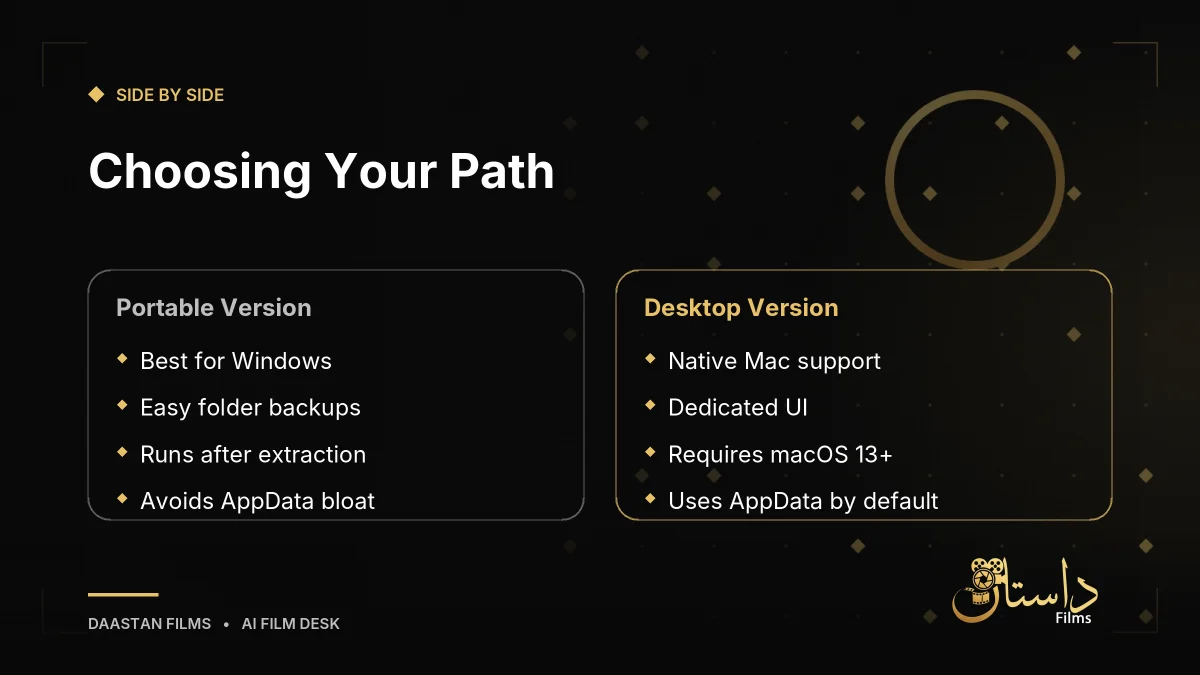
While the quality of generated images remains identical regardless of the installation method, the underlying file structure and maintenance requirements vary wildly. According to the source, there are four primary paths to consider based on your operating system and specific production needs. For Windows users focusing on Stable Diffusion or FLUX, the Portable version is highly recommended because it runs immediately after extraction and allows for easy backups through simple folder duplication.
If your workflow involves multiple interfaces beyond ComfyUI, the source suggests Stability Matrix as a solution to consolidate model storage into a single shared location. Mac users on Apple Silicon (macOS 13 or later) are encouraged to use the dedicated Desktop version. For creators looking to integrate LLMs, audio, and video AI into a single ecosystem, Pinokio offers automated scripts for batch installations. Selecting the correct path from the start prevents the need to migrate dozens of gigabytes of model files later.
The Hidden Storage Costs of the Desktop Version
The official ComfyUI Desktop version is often perceived as the most user-friendly option, but it contains several technical hurdles for those with limited system drive space. The installation guide reports that the base application and its Python environment require at least 4.85GB of free space. However, this is only the beginning of the storage requirement. A single base model can range from 6GB to 12GB, while advanced video or FLUX-based models frequently exceed 20GB.
By default, the Desktop version stores settings, logs, and essential files under the AppData\Roaming\ComfyUI directory on the Windows C drive. As you add LoRAs, ControlNets, and checkpoints, this directory can rapidly balloon to 150GB or more. For filmmakers using laptops or workstations with smaller SSDs, this can lead to a critical failure where even basic Windows updates cannot proceed due to a lack of space.

The Virtual Memory Trap
A common misconception among users is that installing ComfyUI on a secondary drive (such as a D drive) completely protects the system drive. However, reports on Reddit and GitHub highlight a phenomenon where the C drive continues to lose space during generation. The culprit is the Windows virtual memory file, known as pagefile.sys. When heavy AI models overflow the available GPU VRAM (for example, an 8GB card) and the system RAM (such as 16GB), Windows begins paging data onto the system drive.
This process not only consumes tens of gigabytes of space on the C drive but also results in a massive performance hit. According to the installation guide, generation speeds can plummet by more than tenfold when the system relies on virtual memory. Understanding this relationship between hardware memory and disk space is vital for maintaining a professional workflow.
Managing Updates and Custom Nodes
One of the primary advantages of ComfyUI is its community-driven ecosystem of custom nodes. However, these nodes often rely on specific versions of Python libraries. The Desktop version manages its own release channels, which can make troubleshooting difficult when an automatic update breaks a specific node dependency. If the underlying environment becomes desynchronized, the interface may freeze or return persistent errors.
In contrast, the Portable version offers a more robust recovery strategy. Because the entire environment is self-contained within a single folder, creators can preserve a functional state simply by copying the folder and renaming it before performing updates. This manual version control is often more intuitive for technical editors who cannot afford downtime caused by software instability.
A Foolproof Installation Strategy
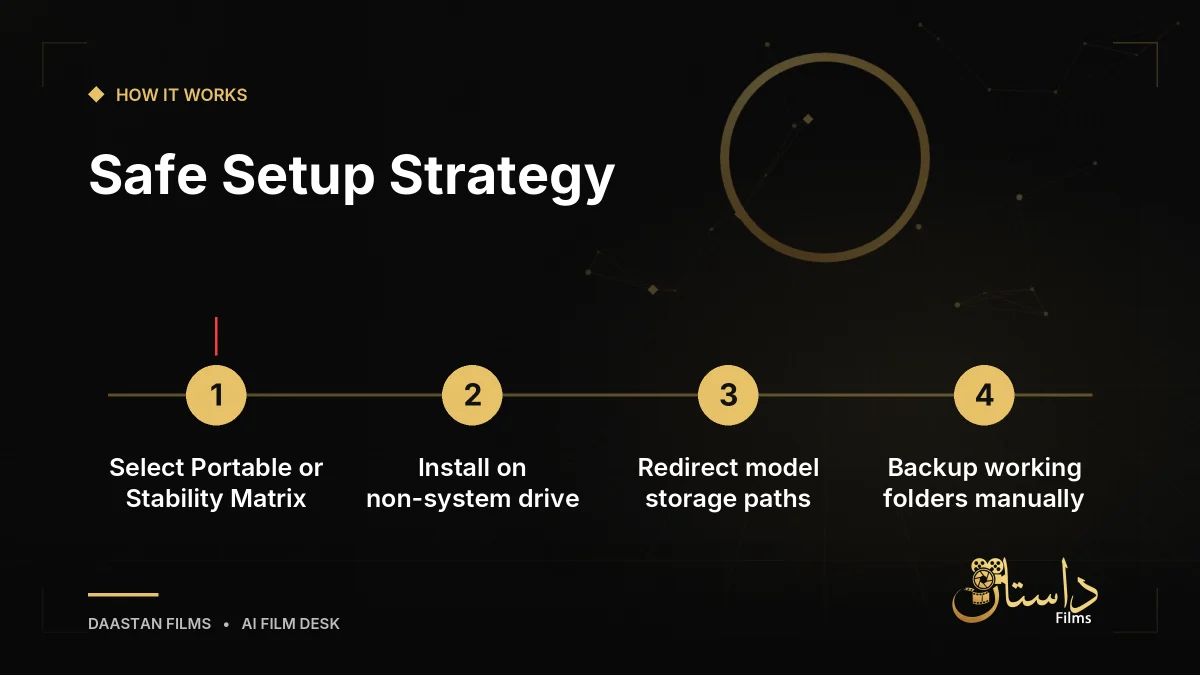
To avoid these traps, the source outlines a specific strategy for new installations. The most critical step is the Golden Rule: redirect the model storage location to a high-capacity secondary drive immediately after the initial setup. This ensures that the massive checkpoint files do not reside on the system drive, regardless of which version of ComfyUI you choose to run. For specific instructions on modifying path configurations, users should consult the official documentation for their chosen installation method.
Furthermore, it is essential to monitor your VRAM and main memory usage. If you consistently find your C drive filling up during generation despite having models on another drive, it is a sign that your hardware is over-relying on virtual memory. In these cases, reducing the model size or upgrading hardware may be necessary to maintain system health.
Conclusion
Setting up ComfyUI Desktop requires more than just following a one-click installer. By understanding the storage requirements of the base 4.85GB install and the potential for 150GB+ in model growth, filmmakers can make informed decisions about where to house their AI tools. Whether you choose the Portable version for its backup ease or the Desktop version for its Mac-native interface, prioritizing model redirection and monitoring virtual memory will ensure your production environment remains stable and efficient.
Frequently asked questions
This is likely due to Windows virtual memory (pagefile.sys). When your GPU VRAM and system RAM are full, Windows uses the C drive to store temporary data, which can consume tens of gigabytes and slow down generation speeds.
Mac users with Apple Silicon should use the Desktop version, which is designed to run on macOS 13 or later with a dedicated interface.
Using the Portable version allows you to duplicate the entire installation folder. By creating a backup of a '100% working state,' you can easily revert if a new update or custom node causes errors.
Have a film, DVC or AI project in mind?
Daastan Films blends production, post-production and AI. Let’s talk about yours.